
Taskbar
The top bar keeps applications, window groups, utilities and persistent feedback within reach.
Current beta & runtime boundary
At snapshot 6e6ad828c (2026-11-02 canonical ledger), 19 of 242 whole EARS requirements and 42 of 417 scenarios hold historical source-bound acceptance (ELM-TEA-001, ELM-TEA-002, and ELM-DEL-010, alongside published a327c8f7f Store and 6e6ad828c persistent custody CPU checks). The embedded desktop specimen below runs in-browser over deterministic fixtures, and captures in Evidence come from the frozen bc3daf7b reference baseline. Native Omarchy/Hyprland GUI, provider cleanup, AT/IME, hardware latency, and release acceptance for this surface remain OPEN.
Overview
The top bar keeps applications, window groups, utilities and persistent feedback within reach.
Anatomy
A toolbar holds recovery controls, application groups and utilities. A separate status region carries persistent feedback.
- Recovery controls: appear when current window or workspace facts need refresh.
- Application controls: pinned entries and observed groups expose a name and state detail.
- Utilities: Applications, Task View, switcher, Notifications, Files, System and Settings open their respective surfaces.
- Status: persistent feedback sits separately from the controls.
States
Active application, observed window focus, attention and keyboard focus express different facts. Minimized groups retain their detail.
- Active: the application has the active family; this is not the keyboard focus indicator.
- Minimized: the family remains represented and can be restored.
- Attention: the group reports attention separately from activity.
- Detached: Reconnect replaces the Applications utility until the shell is connected.
Specimen
Real Elm interface. Simulated desktop. Client window interiors are fixtures. Load the desktop only when you want to explore this component.
Open the full desktop scenario
Related archived specimens: Frozen v6 taskbar, Frozen v6 utility. Frozen v6 is an archival reference.
Behavior
Use a group to activate, minimize or restore a single family; a group with multiple families opens the picker. Arrow keys, Home and End navigate the bar.
Within the bar, Left and Right move between available controls; Home and End reach the first and last. Enter or Space activates the focused button. Controls scroll into view as focus moves. Refresh reads current facts rather than repeating an uncertain operation.
Accessibility
Controls remain in source order and scroll into view. The status region does not duplicate the announcement owner.
Content
Keep application names and operation feedback intact; expose the full name when a visual label is shortened.
Utility labels name the destination, while group details report the observed state. Notification count refers to live entries. Avoid describing keyboard focus as application activity.
Evidence
Unmodified captures of the running interface record the states below.
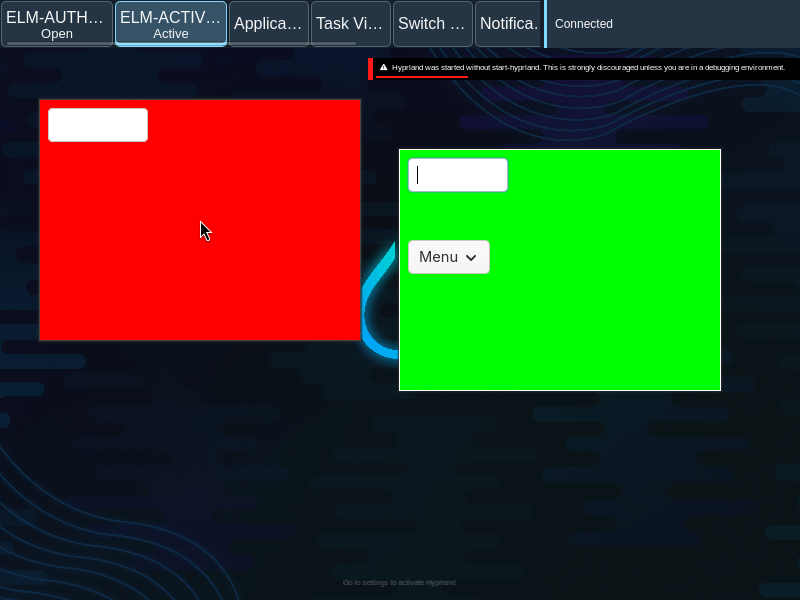
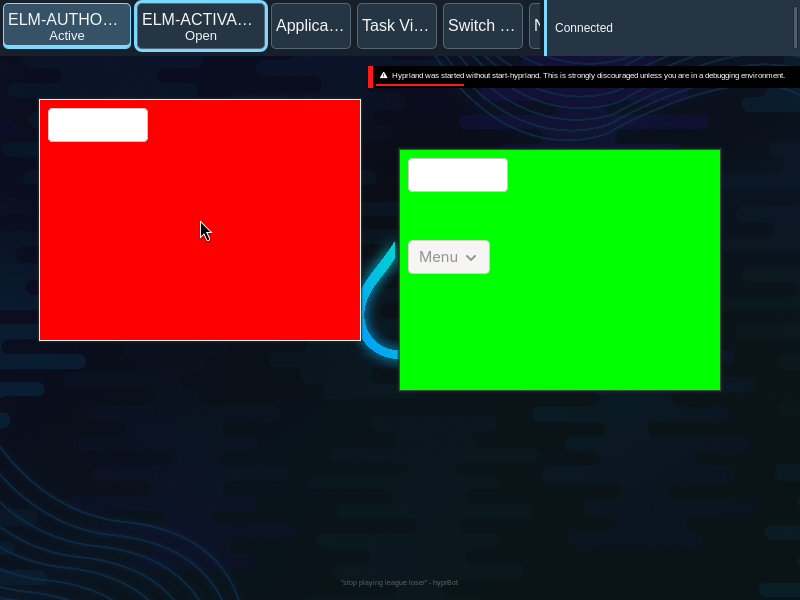
Try it
Explore taskbar in context on the simulated desktop.